
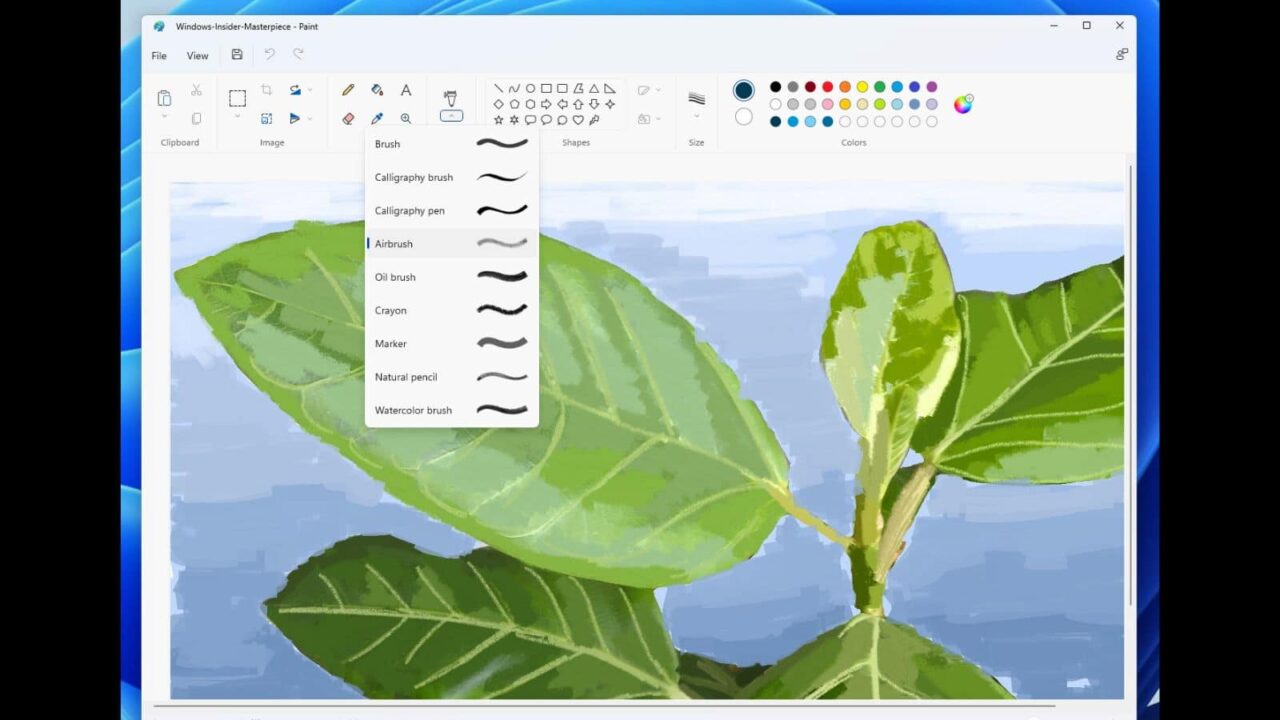
A Step-by-Step Guide for Windows Paint [2023]: A subject may not always be ideally complemented by a background in an image. When possible, it is preferable to eliminate the background while leaving the main subject in place so that a new background can be applied afterwards. Prior to a few months ago, accomplishing this required the use of quite pricey software or the manual removal of the background with less-than-stellar outcomes.
Now, however, even a basic application such as Windows Paint can eliminate the background of an image.With the utilization of Windows Paint and Windows Copilot, it is possible to effortlessly eliminate the background from an image by simply performing one click.
A Step-by-Step Guide for Windows Paint [2023]:
necessary criteria
Prior to utilizing Windows Paint to eliminate the background of an image, the Windows and Paint applications must satisfy the subsequent prerequisites:
Check for Paint 11.2306.30.0 or later in the Settings menu.
Windows Insiders releases are currently available in the Canary and Development channels.
Availability
The distribution of the new Windows Paint, which incorporates AI functionalities such as background elimination, layer management, and Cocreator preview, has commenced. Individuals enrolled in the Windows Insider Program ought to have already encountered the functionality in Paint.
The new AI capabilities in Paint are anticipated to be accessible to all users beginning on September 26th. It is possible that its availability will not be immediate, and its rollout to you may require some time. Not to worry if you fail to receive an update following September 26th. As it is a 22H2 update, you should receive it relatively quickly.
How to remove the background from an image using Paint on Windows
With the assistance of an AI-enabled Paint feature, eradicating an image’s background is effortless.
- To begin, launch Paint and view or drag and drop the image.
- In an alternative method, select Paint by right-clicking the image and hovering over Open with.
- Click the backdrop removal option located in the ‘Image’ section of the toolbar. A subject is depicted within a square icon set against a variegated background.
- When in windowed mode, select the Image option initially.
- Select the background removal option thereafter.
- With minimal delay, the background will be eliminated, leaving only the subject in view.
- Notably, the checkerboard pattern emphasizes the areas of the image that lack a background, or are transparent.
- You are free to save the image in any way you desire. Ctrl+S will cause the current image to be saved. Alternatively, select Save as from the File menu and choose the format in which you wish to save the file.
- Save the file with a designated name and location.
- Examine the image with the background eliminated.
In addition to removing the backdrop of the entire image, you can also remove the background of a portion of the image using the rectangle selection. To accomplish this, select the ‘Selection’ option initially.
- Select ‘Rectangle’.
- Proceed by placing the rectangle over the region whose background you wish to eliminate.
- Click the ‘Background removal’ option under ‘Image’ as you did previously.
- And the background of the specified area will be eliminated.
- Maintain the previous image settings and examine the resultant image devoid of the background.
- Utilize the Windows Copilot with Snipping Tool as an alternative.
The background of an image can be eliminated in Windows by leveraging the capabilities of Copilot AI in conjunction with the Snipping Tool. Refer to the following guide for this.
FAQ
Assemble a few frequently inquired inquiries concerning the process of background removal in Paint.
May I employ Free-form Selection in Paint to eliminate the background of an image?
No, the Free-form selection cannot be used to eliminate an image’s background. In order to eliminate the backdrop, the features necessitate precisely defined boundaries. Consequently, the background will be eliminated either from the entire image or from the specific region specified by the Rectangle option.
What can be done with backgroundless images?
After the background of an image has been eliminated, it becomes possible to merge multiple images by incorporating elements from other images as layers. All of this is now possible through the Paint application.
When will the backdrop removal feature be available in Paint?
Microsoft has scheduled the implementation of the new features to commence on September 26th. Nonetheless, if you possess a Canary or Development build, you should already have access to the same.
Microsoft is finally integrating advanced features into its most fundamental tools, enabling users to fully exploit the capabilities of artificial intelligence that is being incorporated into applications and further enhancing the overall Windows experience. We trust that this tutorial has elucidated the process of eliminating an image’s background with a single click using Paint. Until our next meeting!