

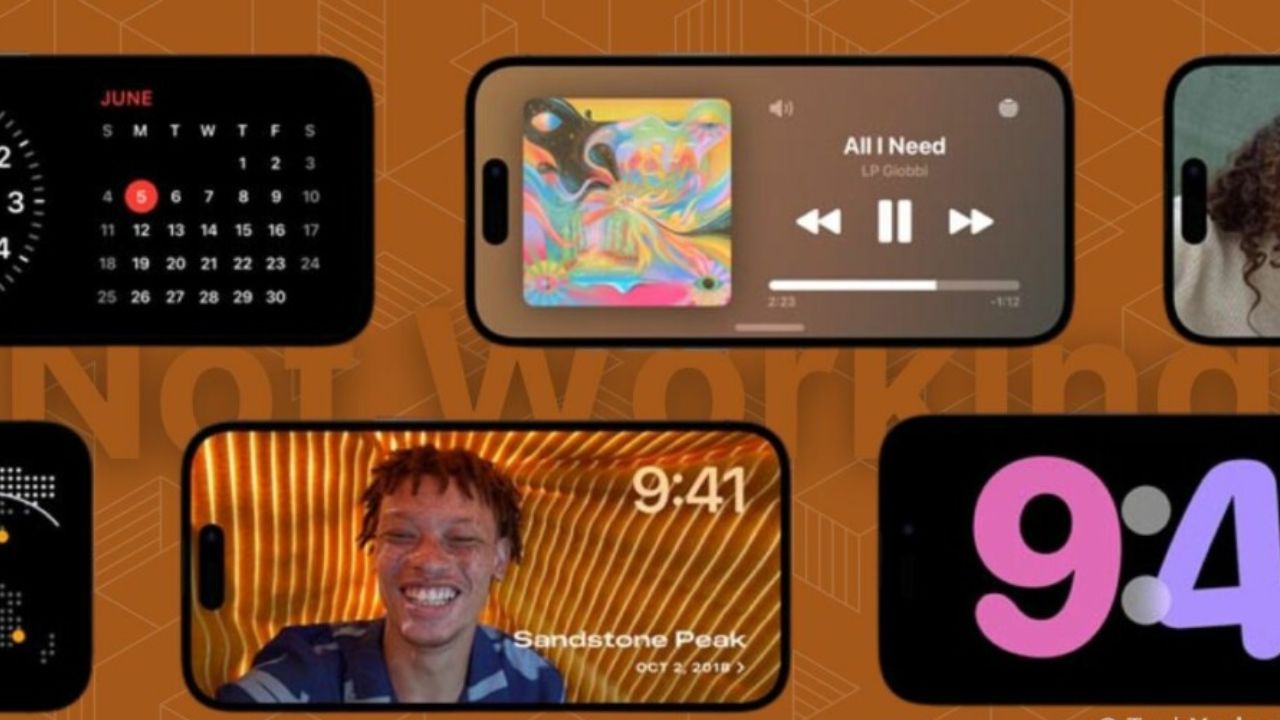
Resolving StandBy Mode Issues on iOS 17: StandBy mode is a novel method for keeping your iPhone up-to-date while it is charging. You can view your favourite photos, multiple widgets, a large clock, forthcoming events, and reminders, among other things. Once your device is dormant, charging, and in landscape mode, StandBy mode is automatically activated. It also includes a night mode that tints the entire display with a crimson hue.
This reduces eye strain in low-light conditions, making it the ideal method to check your phone in the middle of the night without waking up. According to recent reports, however, many iPhone users have been unable to get StandBy to function. If you find yourself in a similar situation in which StandBy does not function, the following solutions will help you restore functionality. Let’s get begun.
Resolving StandBy Mode Issues on iOS 17: How to fix iOS 17 StandBy mode not working
StandBy mode can malfunction for a variety of reasons. There may be a transient OS or feature bug. The majority of these problems are caused by misconfigured settings or cache issues, which can be resolved by restarting your device.
In addition, StandBy mode is only activated when your device is in landscape orientation, charging, and inactive for a period of time. It is also possible that your device is not receiving sufficient time to activate StandBy due to motion or a malfunctioning charger. These sections will assist you in diagnosing your issue with StandBy mode and fixing it on your device.
Method 1: Deactivate and reactivate StandBy
We first suggest disabling and reenabling StandBy on your iPhone. There could be a cache error or a bug preventing StandBy from being enabled regardless of your configurations. Reenabling StandBy on your iPhone after disabling it should resolve the issue. The procedures listed below will assist you with the process.
Launch the Settings programme and select Standby.
Tap if Night Mode is enabled on your device to disable it.
Select and disable the corresponding toggle at the top.
Tap Motion To Wake to disable it as well.
Now tap StandBy in the upper left corner of the display.Tap and disable the StandBy toggle at the top.
Now dismiss all applications and allow your device to rest for a while. After a few minutes, relaunch the Settings application and select Standby.
Tap and enable the StandBy switch at the top.
Tap Night Mode if you’d like to re-enable it.
Now tap and deactivate the toggles for the subsequent items.
Night Mode Automatic Wakeup
You can now attempt to use StandBy on your iPhone again. Connect it to the wall, prop it up in landscape orientation, and let it sit inactive for some time. The StandBy mode should automatically activate in a few seconds. If your screen does not remain active, try touching the lock screen after a few seconds. Now, StandBy should be visible and functional on your iPhone.
If the issue persists, we recommend trying the next solution. After a restart, disabling and re-enabling StandBy is also known to resolve issues where StandBy mode fails to register despite being enabled in the Settings app.
Method 2: Restart your iPhone manually
If StandBy mode is still malfunctioning, we recommend disabling it and restarting your iPhone. A hard reboot assists in clearing cache and transient files and reregistering all background services. This can help resolve the majority of iPhone errors, including the Standby mode. The procedures listed below will assist you with the process. After restarting your iPhone, you can re-enable StandBy mode, which should restore functionality.
Launch the Settings programme and select Standby.
Now tap and disable the StandBy toggle at the top.
Close the Settings app once deactivated. Now press and release the Volume Up button before pressing and releasing the Volume Down button.
Press and hold the Sleep/Wake button until the Apple logo appears. You may now restart your device ordinarily. After your device has restarted, launch the Settings app and select Standby.
Tap and enable the StandBy switch at the top.
You can now try the iPhone’s StandBy mode. Connect it to a charger, prop it up in landscape orientation, and let it sit inactive for some time. StandBy should now activate and function as expected on your device.
This is how to use Force restart to repair the iPhone’s StandBy mode.
Method 3: Ensure proper usage of StandBy
There are a few nuances to using the StandBy mode. Therefore, we advise you to read this section to assure proper usage. Plugging your device into a charger will activate the StandBy mode. Ensure that your device is charging, in landscape orientation, and dormant for some time. Once these conditions are met, StandBy mode should activate automatically. StandBy mode activates automatically so long as you are observing the screen of your device. This can be somewhat perplexing if you do not have an iPhone with an Always-On display. On such devices, a single tap may be required to activate and view the StandBy interface while the phone is locked.
In contrast, if you have an iPhone 14 Pro or higher, the StandBy interface will appear as soon as the Always On display is activated on your device. A few other settings can affect StandBy mode on these devices, most notably the Motion To Wake option, which activates your iPhone’s StandBy screen when motion is detected at night. As of the time of writing, iOS 17’s initial release is a touch finicky in this regard. According to our testing and my personal experience, disabling this option in the Settings app makes StandBy mode function more consistently. If StandBy mode is still not functioning on your iPhone, you can attempt to resolve this issue by disabling the Motion To Wake option using the steps below.
Launch the Settings programme and select Standby.
Tap Night Mode in the lower bar.
Note: This feature is exclusive to the iPhone 14 Pro and later.
Tap and disable the Motion To Wake toggle.
And that concludes it! If Motion To Wake was previously interfering with StandBy mode, you should now be able to use it normally.
Resolving StandBy Mode Issues on iOS 17: Method 4: Ensure Low Power Mode is turned off
Low Power Mode also impedes StandBy mode by disabling it whenever it is enabled. This is intended to conserve power while your phone charges as quickly as possible in the background. If StandBy is still not functioning on your iPhone, you should verify and disable Low Power Mode if it is enabled. To determine whether Low Power Mode is enabled, examine the battery icon in the top right corner of your screen.
If the icon is yellow, your device is currently operating in Low Power Mode. To disable the same, swipe down from the upper right corner to access the Control Centre. Then, you can tap the Low Power Mode icon to disable it.
If the Low Power Mode module is lacking from your Control Centre, you can disable it by following the instructions below.
Launch the Settings app and select Battery.
Now touch the top and disable Low Power Mode.
And that concludes it! If Low Power Mode was enabled on your iPhone, it was likely the reason why StandBy mode was not functioning. You should be able to use StandBy mode without further difficulty.
Method 5: Turn off the Rotation Lock
It appears that the rotation lock of the device can also affect StandBy mode. In our testing on devices older than the iPhone 14 Pro, the rotation lock prevented the activation of the StandBy mode in some instances. Disabling the same appeared to resolve the issue and restore the functionality of StandBy mode. We suspect Apple will patch this issue in future iOS 17 updates, so this fix will likely only work for the first few versions of iOS 17. If you continue to experience issues with the StandBy mode, we suggest disabling the rotation lock to determine if this resolves the issue.
Swipe down from the upper-right corner of your screen to access the Control Centre. Now, touch the rotation lock module to disable it.
You can now connect your device while it is sealed in landscape mode to activate StandBy mode. If you were experiencing the rotation lock problem, StandBy mode should now function properly on your device.
Method 6: Resetting your iPhone’s settings
Now is the time to take drastic action. It is possible that you are experiencing problems with your current Settings configuration. This can prevent certain modifications from being registered, including the StandBy toggle. This can keep the features disabled in the background despite their apparent activation in the Settings app. In such circumstances, resetting all iPhone settings can resolve the issue. Follow the instructions below to reset all iPhone settings and restore Standby mode.
Launch the Settings programme and select Standby.
Now tap and disable the StandBy toggle at the top.
Then, return to the Settings programme and select General.
Scroll down and select Transfer or Reset iPhone.
Tap Reset.
Select Reset All Settings from the menu.
Enter the passcode for your device when prompted.
Select Reset All Settings to validate your selection.
Your iPhone will resume and all settings will be reset. Following the completion of the procedure, your iPhone will boot normally. You can now reactivate StandBy in the Settings app and attempt to use it while your device is plugged in and inactive in landscape mode.
If you were experiencing problems with StandBy mode as a result of misconfigured settings or other flaws, it should now function normally.
iPhone 15 Production Begins: iPhone 15 Series to Feature New Design, Improved Cameras
Method 7: If you have an iPhone 14 Pro or later, toggle Always On.
iPhones with Always On displays offer additional StandBy mode customization settings and options. This primarily entails the capacity to utilise intelligent face detection so that the display can be turned off whenever the user’s gaze is diverted. However, if this option is enabled while Always On display is disabled, you may encounter StandBy bugs in which the mode does not function as anticipated. Checking your Always On settings and enabling or disabling them based on your preferences can help resolve the StandBy mode in such situations. The methods below will assist you in doing the same.
Launch the Settings application, then select Display & Brightness.
Scroll down and select the Always On Display option.
If you wish to use the Always On feature for StandBy mode, tap and toggle the Always On Display switch on.
Toggle the following options based on your preferred Always On behaviour.
This setting makes your lock screen wallpaper marginally visible while Always On is enabled on your device.
This option causes pending notifications to be displayed on the Always On display while it is active. However, unless you choose to view your lock screen, live activities and other notifications will not be updated in real-time.
Return to the Settings app and then tap Standby.
Now, if you enabled Always On in the steps above, select and enable the corresponding toggle. Turn this option off if you’ve decided to disable Always On on your iPhone.
Finally, restore your iPhone for safety’s sake. Press and release the Volume Up and Volume Down buttons, respectively. Press and hold the Sleep/Wake button until the Apple logo appears.
And that concludes it! If you were previously unable to use StandBy mode on your iPhone due to conflicting Always On settings, you should now be able to do so without issue.
Method eight: Await an update
We now recommend that you merely wait for a future iOS 17 update to fix the StandBy mode on your iPhone. It’s possible that you’re experiencing a bug unique to your configuration or a known bug that the developers are presently monitoring and fixing.
A future update to iOS 17 will likely resolve these bugs and restore StandBy mode to your device. iOS 17 is in its early phases of release, so such bugs are to be expected. We recommend using the Feedback app to provide Apple with detailed feedback on the subject. The issue should be resolved in a future iOS 17 update.
Resolving StandBy Mode Issues on iOS 17: Should you reset your device?
We do not recommend resetting your device, as the procedure can be tedious and may not resolve the StandBy mode issue. It is unlikely that you are experiencing problems with StandBy mode due to a corrupt iOS 17 installation on your device. If this were the case, you would also encounter problems and errors when using other features on your device, specifically widgets and default iOS applications.
If you are experiencing additional symptoms, you can reset your device to resolve this issue. Before performing a device reset, we recommend that you back up all of your data, as they will be deleted during the process. Navigate to Settings > General > Transfer or Reset iPhone > Erase All Content and Settings to reset your device. Following the on-screen instructions, you can reset your device.
We trust this post helped you quickly fix the iPhone’s StandBy mode. If you have any further questions or encounter any further issues, please feel free to contact us using the section below.