

Resetting Hidden Siri Suggestions on iPhone: iOS 17 allows you to conceal specific Siri-suggested actions or shortcuts to prevent them from appearing in Spotlight.
You can reset the concealed Siri suggestions at any time to restore them to Spotlight Search.
You can only reset all of your hidden suggestions at once, and you cannot choose which ones to unhide or retain within the list of hidden suggestions.
Spotlight on iOS has been the home of Siri suggestions for some time, providing users with possible actions they may be interested in based on their daily routines and phone usage. These actions will be visible as soon as you swipe on your home screen to access Spotlight and will be displayed above the search bar.
Resetting Hidden Siri Suggestions on iPhone: What are Siri’s secret recommendations?
Previously, the only way to avoid Siri suggestions was to entirely disable them in the Settings app. Disabling Siri Suggestions would not only hide the undesirable suggested actions, but also the applications and actions with which you frequently interact on Spotlight.
Apple has modified iOS 17 so that users can now conceal certain Siri suggestions within Spotlight rather than disable them permanently. If you dislike a recommended shortcut or action that appears in Spotlight, you can easily hide it by long-pressing on it and tapping Don’t Suggest.
The recommended keyboard shortcut or action is then sent to hidden suggestions, which compile a list of all the actions you’ve hidden. You may still receive additional suggestions from Siri based on your routine and device utilisation, but the actions or shortcuts you marked as hidden will no longer appear in Spotlight. You can easily unhide all of your concealed Siri suggestions from iOS settings at any time, and the actions will then begin to appear in Spotlight.
Spruce up public amenities at Siri Fort Sports Complex in 2 months: Delhi LG to officials
How to reset Siri’s concealed suggestions on iOS 17
Verify that your iPhone is running iOS 17 or a later version by navigating to Settings > General > Software Update prior to resetting concealed suggestions.
Note: At the time of writing, iOS 17 is only available as a developer preview; therefore, we recommend that you wait for a beta or public release to prevent software issues.
To restore Siri’s concealed suggestions, launch the Settings app on your iPhone.
Scroll down within Settings and select Siri & Search.
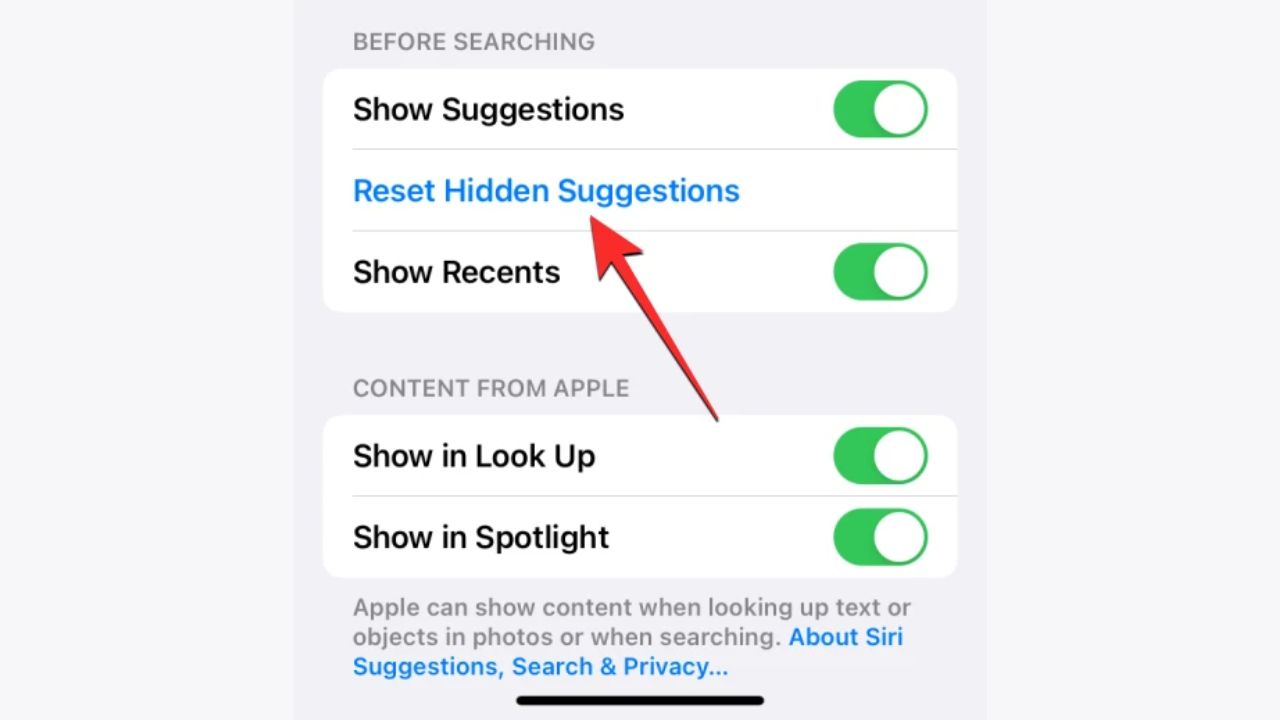
Scroll down to the “Before Searching” section and tap Reset Hidden Suggestions on the subsequent page.
You will now see an on-screen prompt requesting you to confirm your action. To continue, select the Reset button at the bottom.
What happens when concealed suggestions are reset?
When you reset the Siri suggestions that were concealed from Spotlight Search on your iPhone, iOS will display all Siri suggestions based on your device usage and routines, including the ones you voluntarily hid. When accessing Spotlight Search from the home screen, iOS may display suggested actions and shortcuts based on the time of day and your prior device usage.
You can conceal unwanted Siri suggestions at any time by long-pressing on a suggestion and selecting Don’t Suggest from the menu that appears.
That is all there is to know about resetting Siri’s concealed suggestions on iOS 17.